Renovation
How do I preview a home renovation before I start?
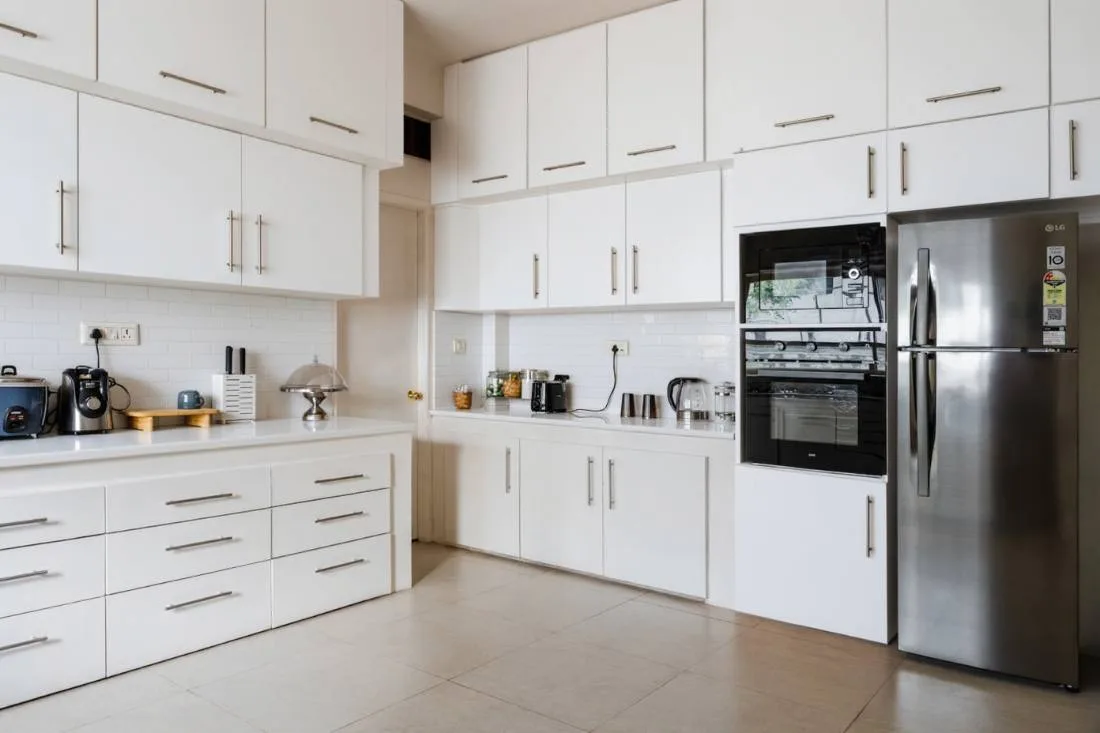
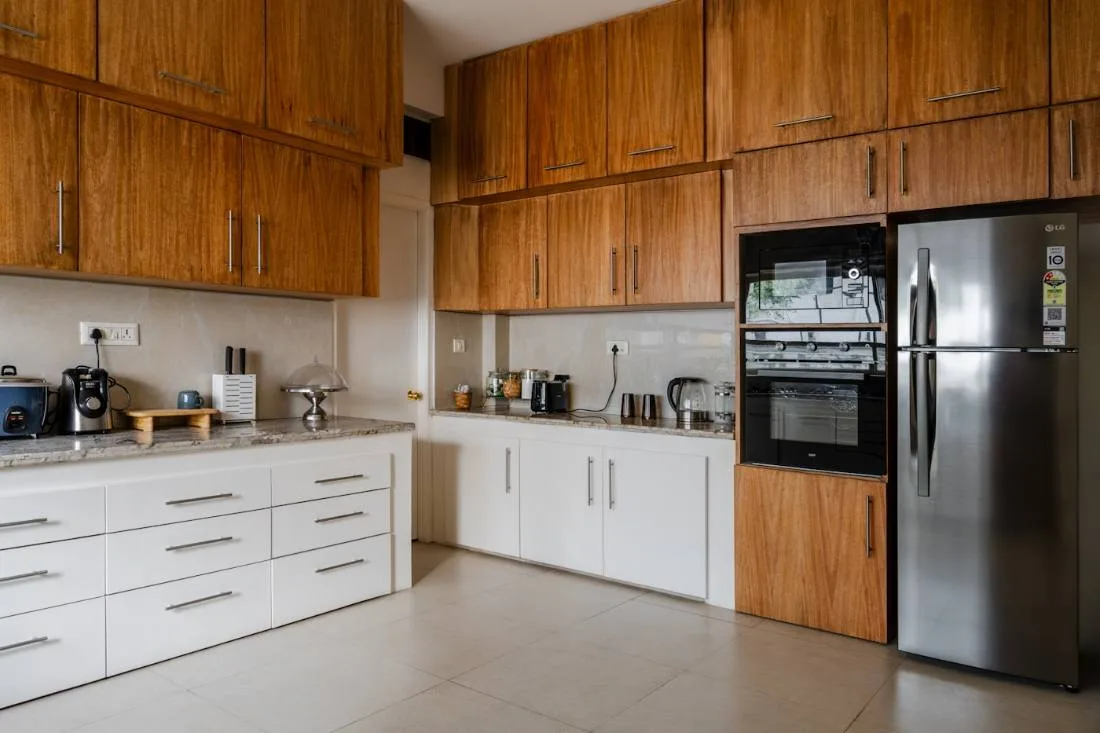
Take a photo of the space as it is today and upload it to an AI home visualizer such as Preview My Home. It identifies the renovatable elements in the photo — cabinets, countertops, backsplash, flooring, walls, tile, fixtures, or siding, roof and doors outside — and you choose what to change and to what. The render shows the finished result on your actual room, with everything you did not select left exactly as photographed, in about a minute. The first render is free with no account, so you can test several directions before calling a contractor.
Where a preview saves real money
Most renovation regret is a finish decision made from a small sample: the cabinet color that turned out too yellow in the room’s light, the tile that fought the countertop, the siding that clashed with the roof. Each of those is cheap to get right on a photo and expensive to get right twice in real life. A preview also gives you and your contractor the same picture to point at, which cuts the “that’s not what I meant” conversations that cause change orders.
What you can preview
- Kitchen: cabinet color or style, countertops, backsplash, flooring, hardware, wall color.
- Bathroom: tile, vanity, fixtures and finishes, wall color.
- Living areas and bedrooms: paint and accent walls, flooring, furniture, full restyling.
- Exterior: siding, trim, front door, shutters, garage door, roof, landscaping.
- Paint anywhere: 15,000+ swatches from 8 brands, applied by exact hex value.
How to get a useful preview
- Photograph the space straight on, in daylight, with the whole area you’re renovating in frame.
- Change two or three things per render rather than everything at once — it’s easier to judge and the AI is more precise.
- Render the same photo a few different ways and compare them side by side. Save the ones you like to share with your contractor or family.
What it is not
A render is a realistic picture of a finish decision, not a construction drawing. It won’t move walls, check plumbing or tell you what something costs. It answers the question that comes before all of that: “will I like it?”
Frequently asked questions
More answers